
Step-by-Step Submission Guide
This illustrated guide shows how to submit your manuscript to Sirte University Scientific Journal through its online platform, from creating an account to submitting and tracking your manuscript. It takes about 15 minutes if you prepare everything in advance.
Submissions are accepted through the platform only. Manuscripts sent by email or any other means are not accepted.
Make a Submission Register Download the template Guide as PDF
Contents
How to read the screenshots: each number in a screenshot is explained under the same number below it. Dark blue circles mark required fields; orange circles mark optional ones.
Before you start: prepare
- Your manuscript as a Word file (.docx), written in English on the 2026 journal template.
- The title, abstract and keywords in English and Arabic.
- For each co-author: name in English and Arabic, their real email address, affiliation and ORCID iD if they have one.
- Your reference list, one reference per line.
- Read the Submission Terms and Conditions and Publication Fees.
Step 1: Create an account
Open the registration page and complete the form. If you already have an account with the journal, go straight to Step 2; do not create a second account.
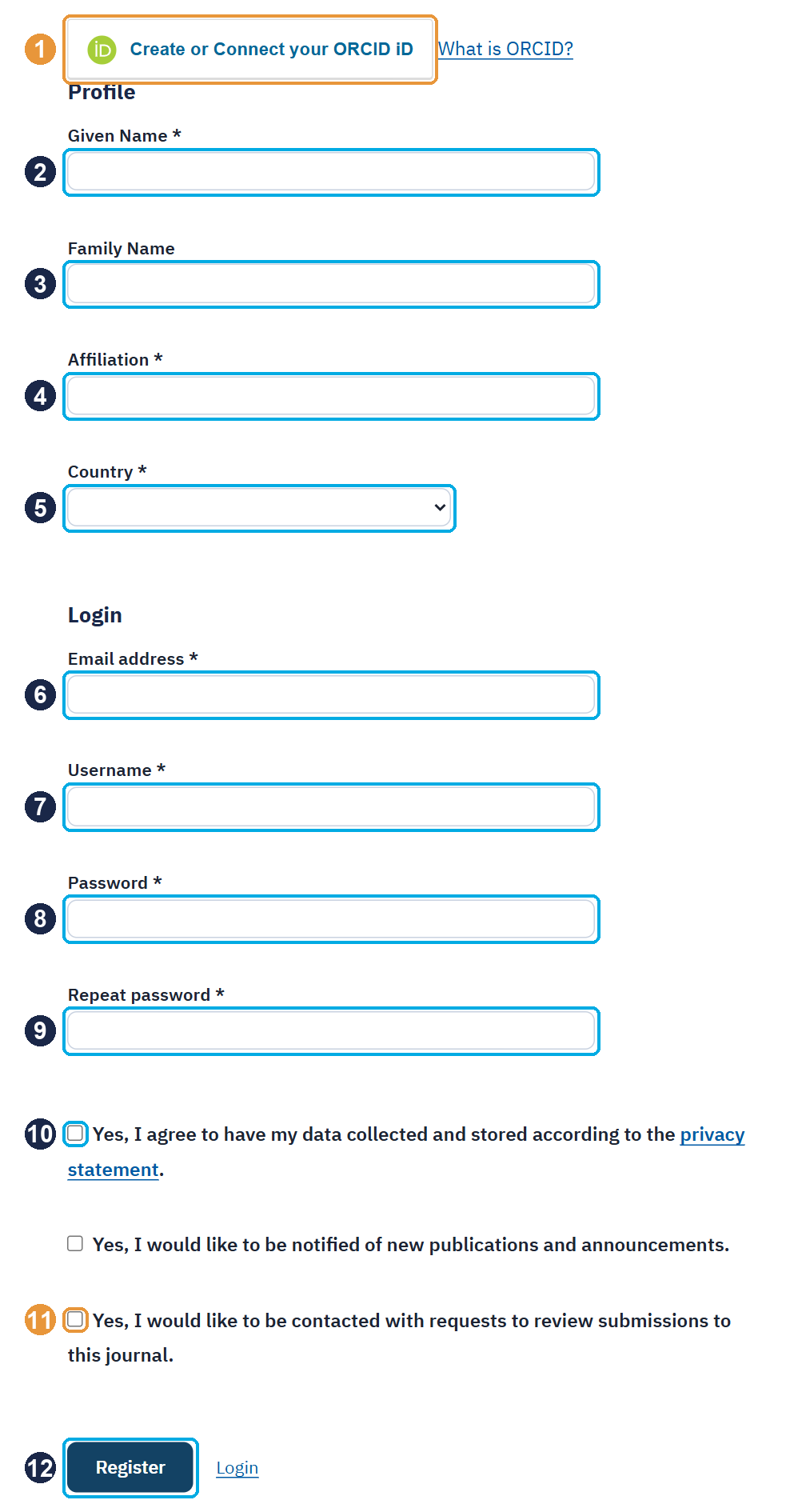
- 1Connect or create your ORCID iD. You can skip this and connect it later. (optional)
- 2Given name.
- 3Family name.
- 4Affiliation: the full name of your university or institution, without abbreviations.
- 5Country.
- 6An email address you check: all journal correspondence goes there.
- 7Username: lowercase letters and numbers, no spaces.
- 8Password.
- 9Repeat the password.
- 10Agree to the privacy statement (required).
- 11Tick this if you would like to be invited to review manuscripts in your field. (optional)
- 12Click "Register".
If you receive an account activation email, click the link in it. If you cannot find it, check your spam folder.
Step 2: Log in
Open the login page.
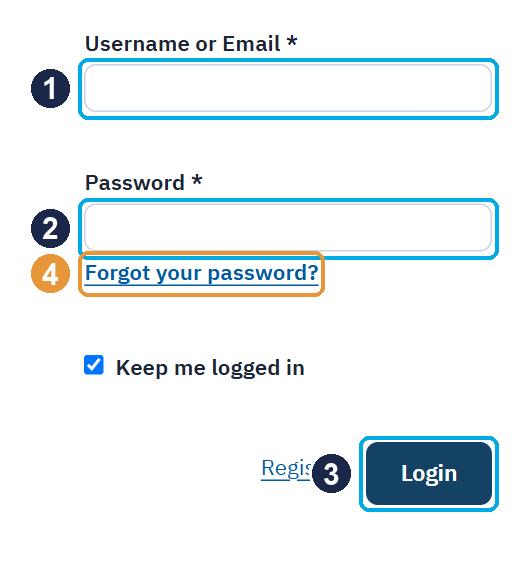
- 1Username or email address.
- 2Password.
- 3Click "Login".
- 4Forgot your password? Request a reset email here. (optional)
Step 3: Start a submission
After logging in, open the Make a Submission page, or click "New Submission" on your dashboard.
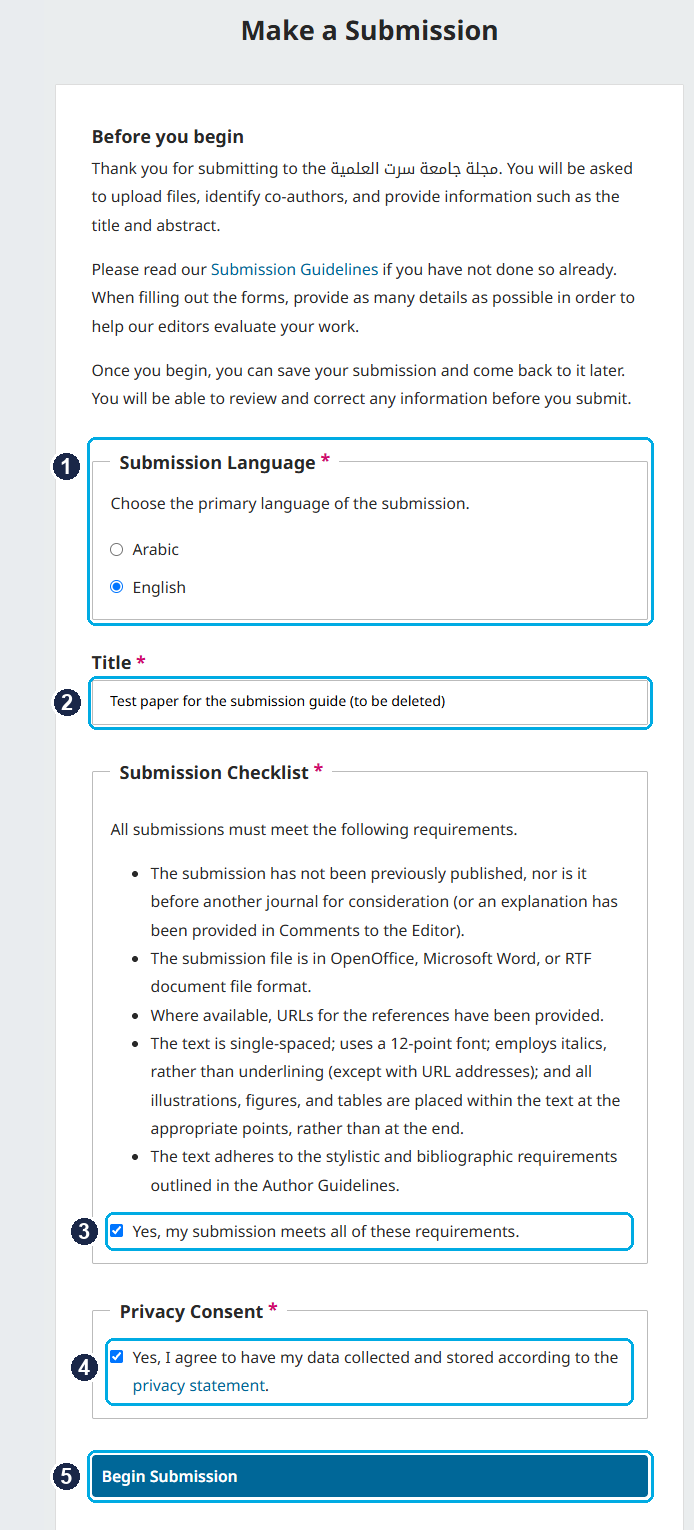
- 1Submission language: choose English, as manuscripts in the journal are written in English.
- 2The title of your manuscript in English, exactly as in your file.
- 3Read the submission checklist and confirm that your manuscript meets it.
- 4Agree to the privacy statement.
- 5Click "Begin Submission". Your submission is then saved automatically and you can come back to it later.
The submission then goes through five stages shown at the top of the page: Details → Upload Files → Contributors → For the Editors → Review.
Step 4: Details
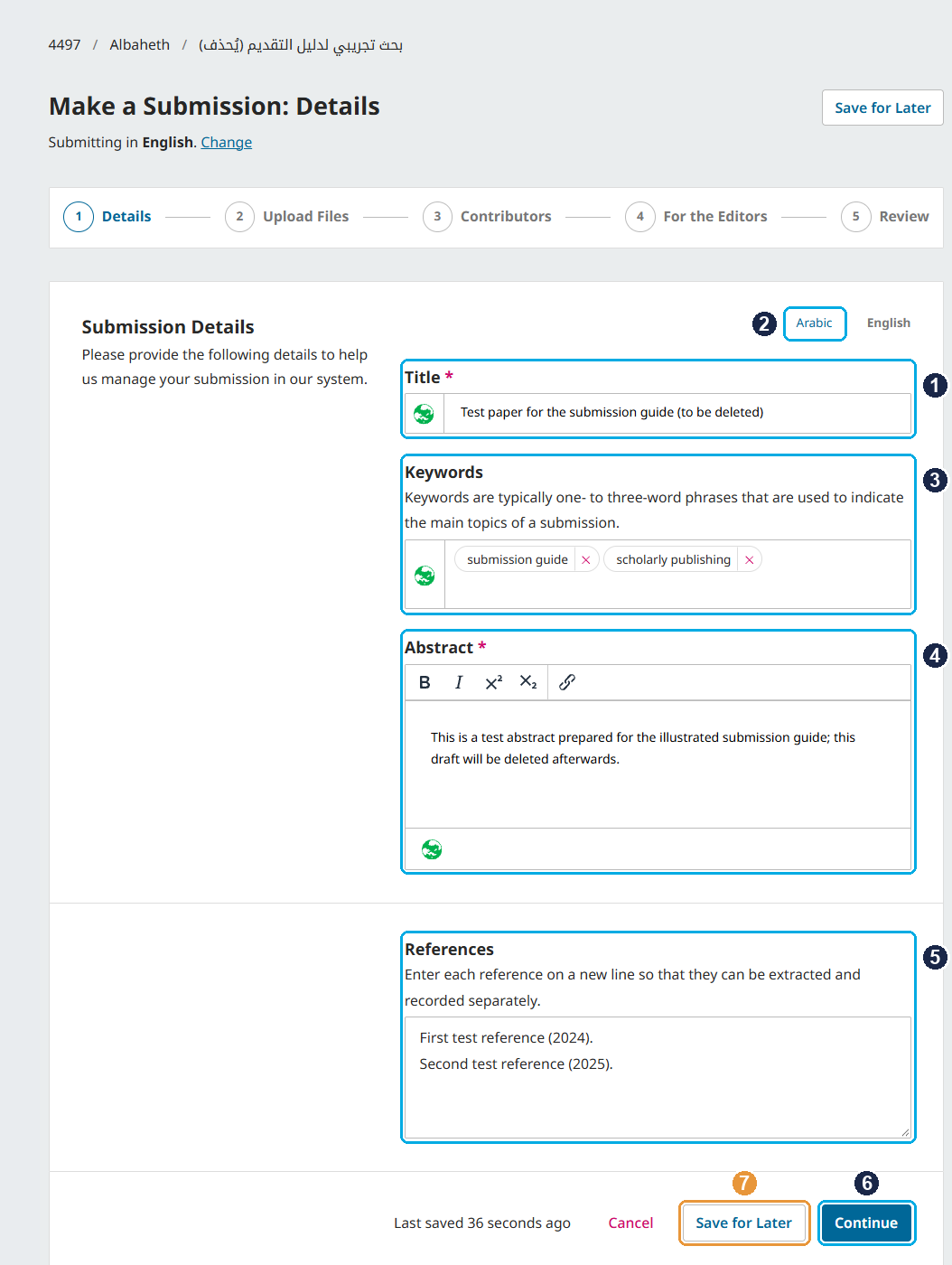
- 1The English title, carried over from the previous step.
- 2Other-language button: click Arabic to show the Arabic fields, then enter the title, abstract and keywords in Arabic.
- 3Keywords: type each keyword and press Enter.
- 4Abstract: copy it from your manuscript and paste it here.
- 5References: one reference per line.
- 6Click "Continue".
- 7"Save for Later" saves your submission so you can finish it another time. (optional)
Step 5: Upload files
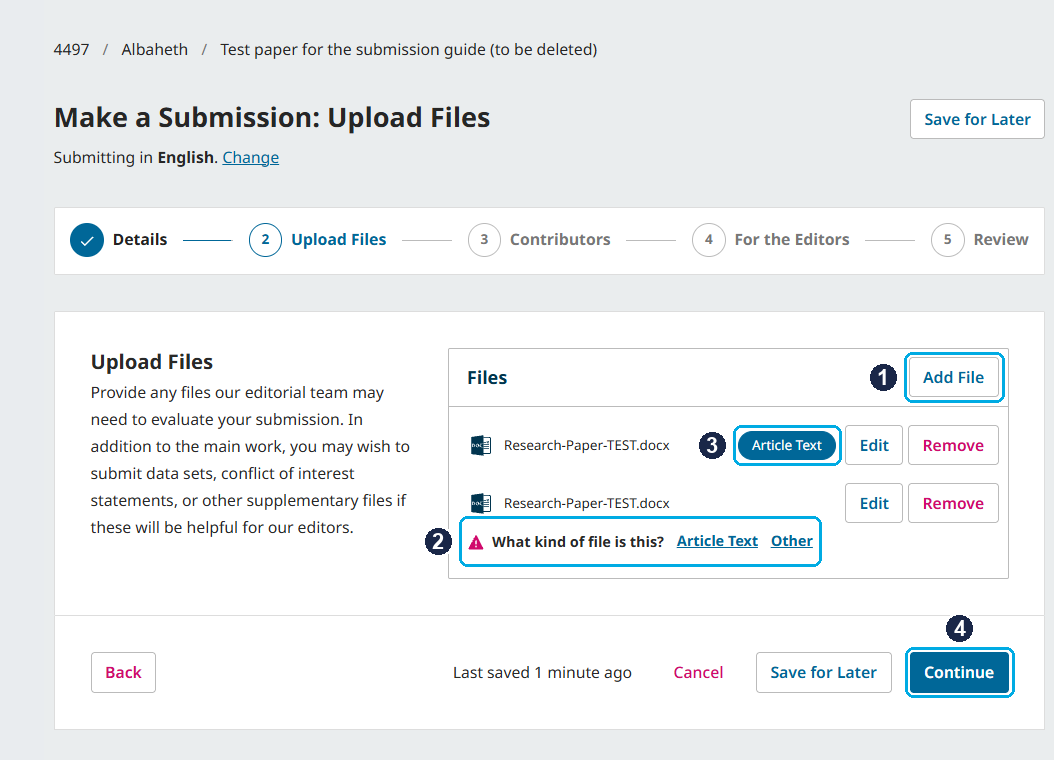
- 1Click "Add File" and choose your manuscript (Word).
- 2After uploading, the platform asks what kind of file it is: choose Article Text for your manuscript, and "Other" for any additional file such as declaration forms.
- 3Once chosen, the file shows the "Article Text" label.
- 4Click "Continue".
Step 6: Contributors (authors)
Add every co-author, in the same order as in your manuscript. You are usually added automatically as the submitting author; check your details with "Edit", and add yourself if your name is not listed.
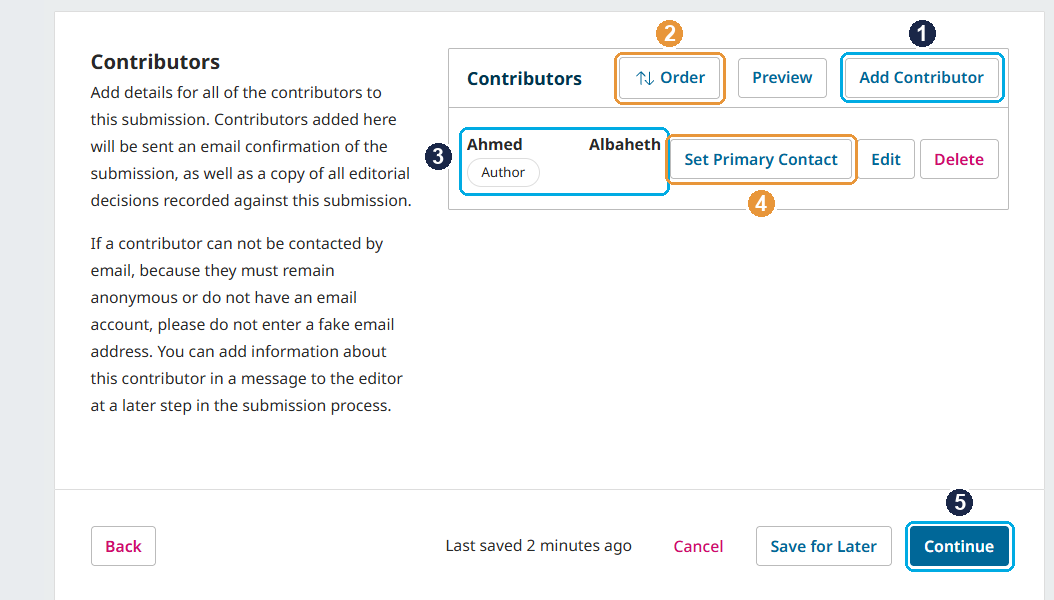
- 1"Add Contributor" for each co-author.
- 2"Order": change the author order to match your manuscript. (optional)
- 3An author after being added.
- 4"Set Primary Contact": the author the journal corresponds with. (optional)
- 5Click "Continue" once all authors are added.
Clicking "Add Contributor" opens this form:
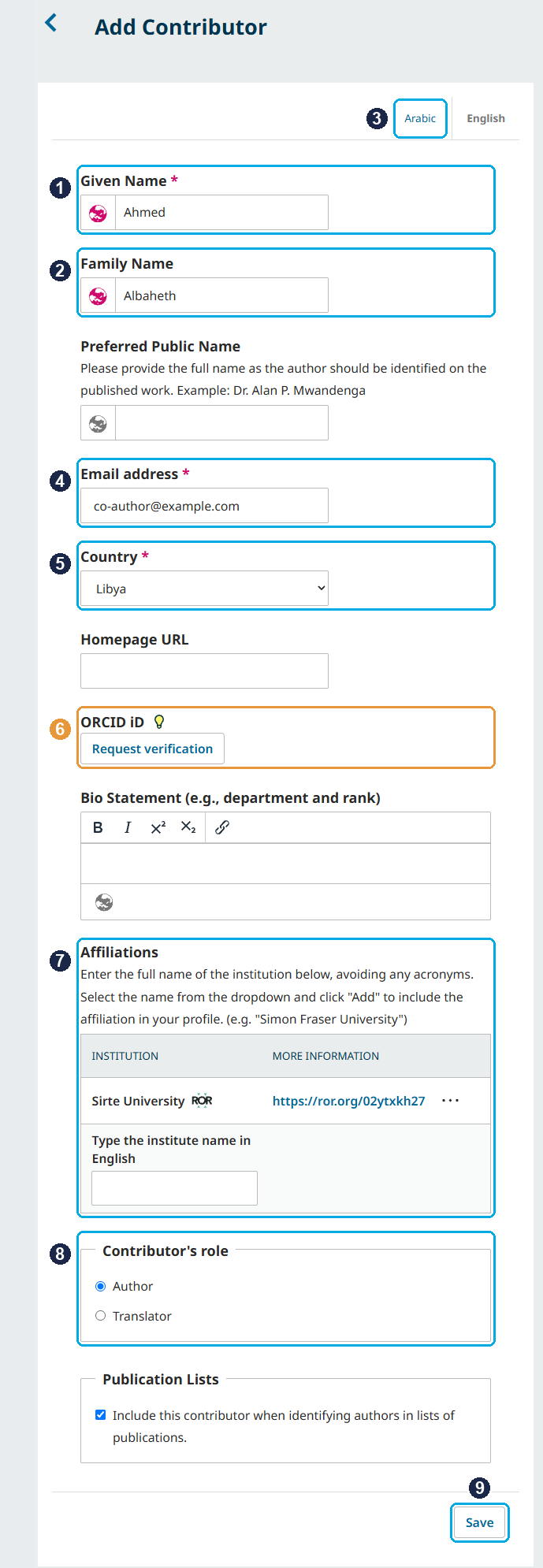
- 1Given name.
- 2Family name.
- 3Other-language button: enter the name in both English and Arabic.
- 4The co-author's own real email address, not yours and not a made-up one: the journal will write to it.
- 5Country.
- 6ORCID: "Request verification" emails the author so they can connect their iD themselves. (optional)
- 7Affiliation: see the next two screenshots.
- 8Contributor's role: "Author".
- 9Click "Save".
Adding an affiliation: type the university name in English (for example, Sirte University), then:
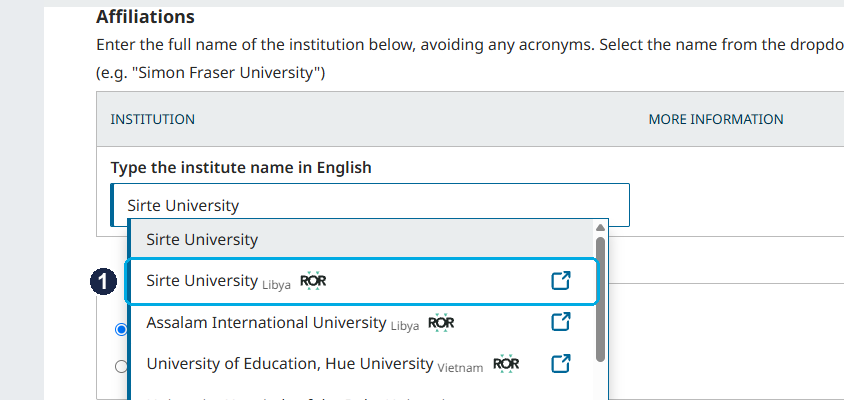

- 1Choose the entry with the ROR logo and the country name.
- 2Click "Add".
Step 7: For the Editors
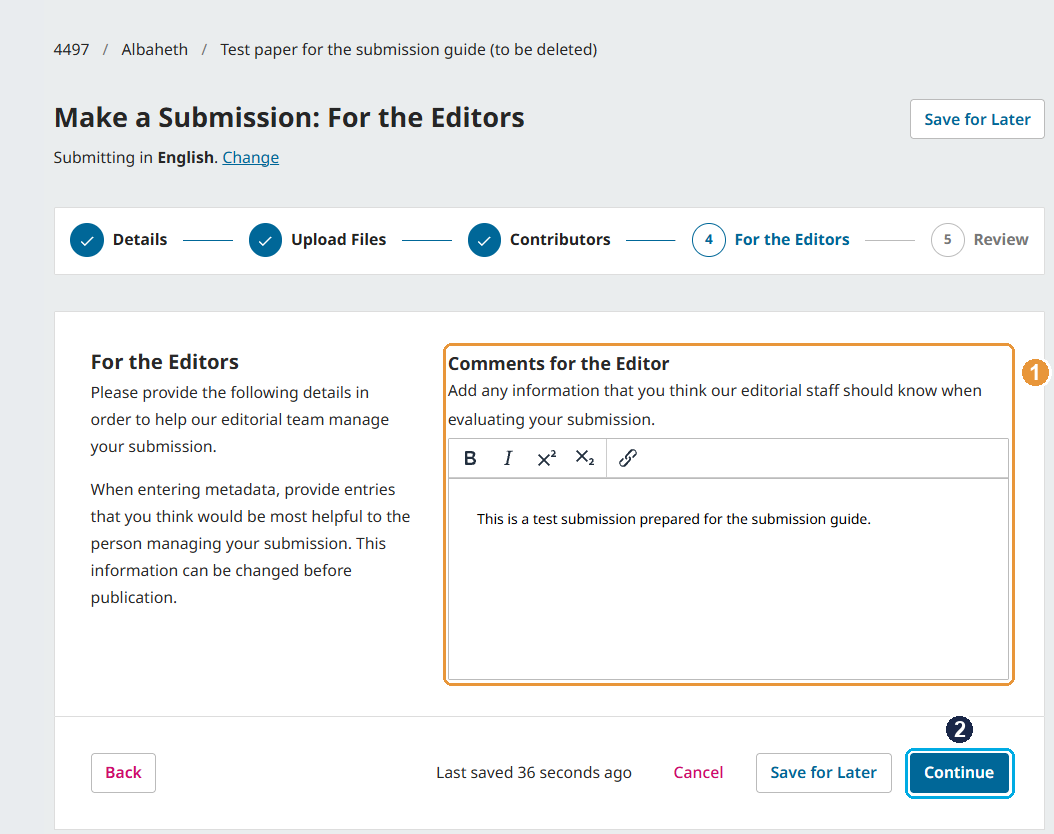
- 1Comments for the Editor: anything the editorial team should know, such as suggested reviewers or a note about the manuscript. (optional)
- 2Click "Continue".
Step 8: Review and submit
This stage shows everything you have entered. Check it carefully before submitting.
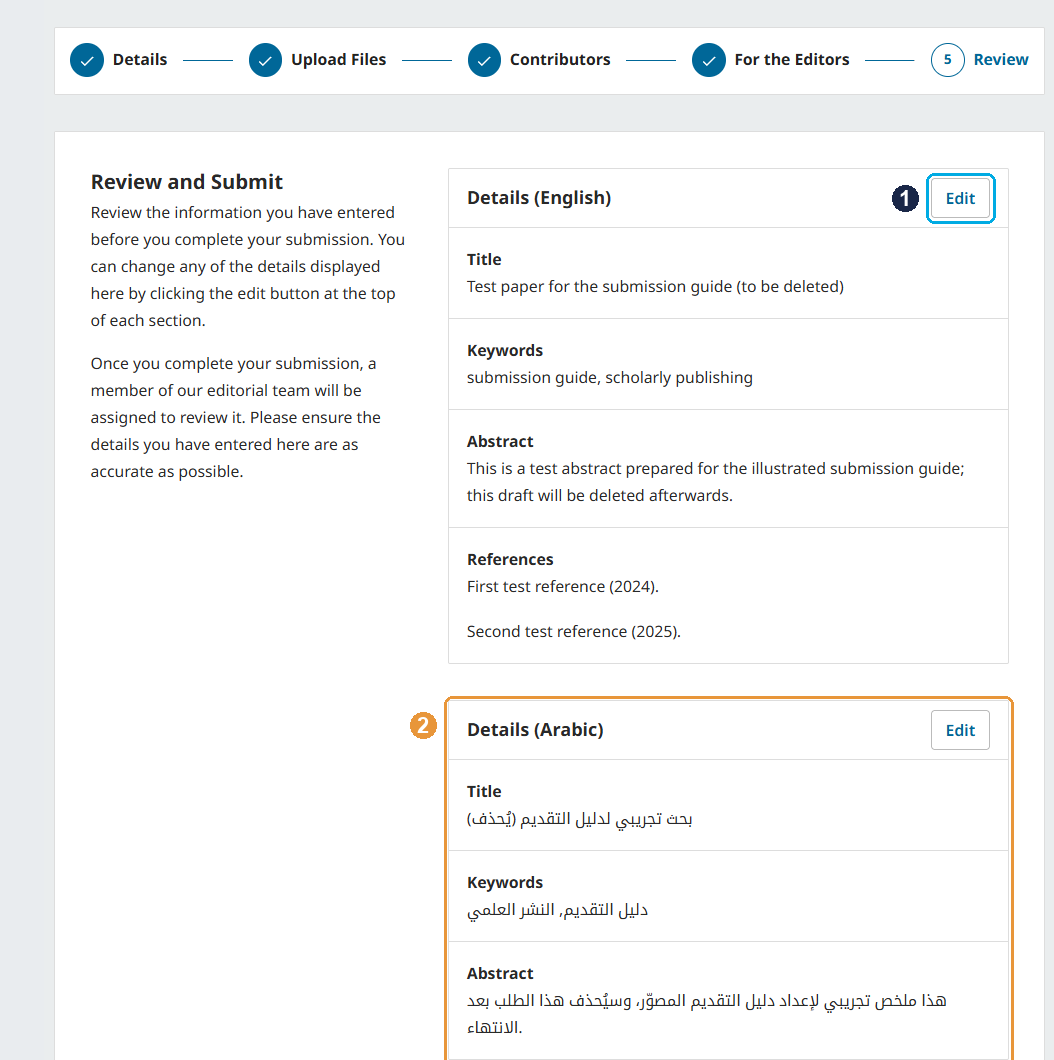
- 1"Edit": go back to any section and correct it.
- 2Make sure the title, abstract and keywords are complete in both languages. (optional)
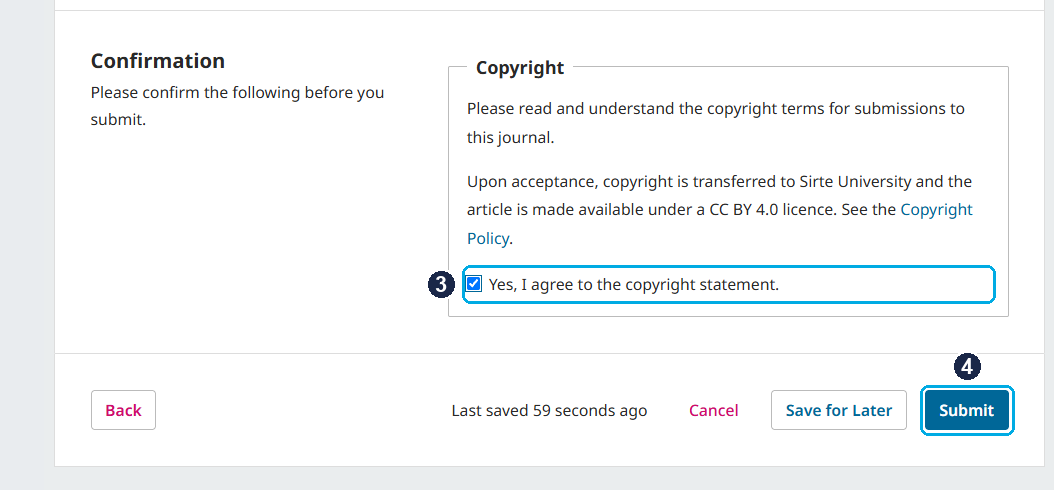
- 3Agree to the copyright statement.
- 4Click Submit once and confirm. A message then tells you the submission is complete.
After you submit
- You receive a confirmation email.
- Track your manuscript after logging in, from Submissions on your dashboard.
- Messages from the editor reach you by email and on the submission page; reply from the submission page itself.
- If revisions are requested, upload the revised version on the submission page; do not make a new submission.
- The next stages (initial screening, double-blind peer review and the decision) are described in Publication Procedures.
Common mistakes to avoid
- Sending the manuscript by email instead of through the platform.
- Creating a second account instead of resetting your password.
- Entering your own or a made-up email address for co-authors.
- Not choosing "Article Text" as the type of the manuscript file.
- Leaving the Arabic title and abstract empty.
- Uploading a PDF, or not using the journal template.
- Submitting the same manuscript twice: use "Save for Later", then complete the saved submission.
Need help?
- Watch the video guide on registering and submitting.
- Technical problems with the platform (account, login, upload): technical support, mansour-othman@su.edu.ly.
- Questions about your manuscript or publishing: the editorial office, susj@su.edu.ly.













 similarity-detection software.